| • | Get the user name and password from the sooper dooper admin |
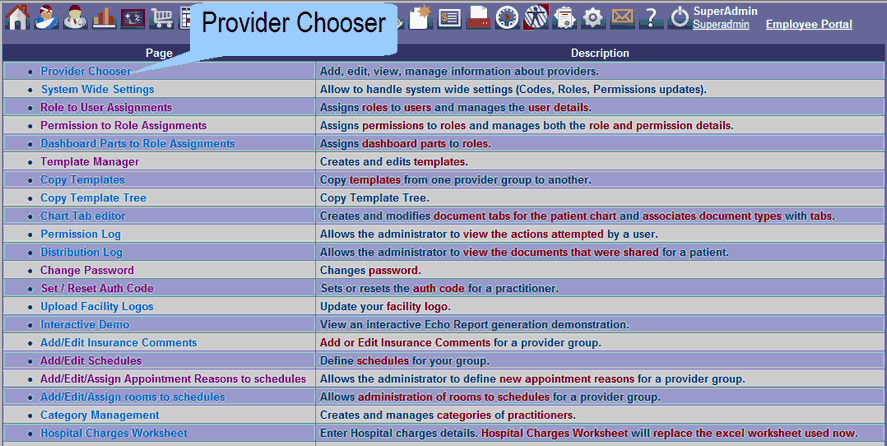
| • | Click on “Provider Chooser” practice or institution name |
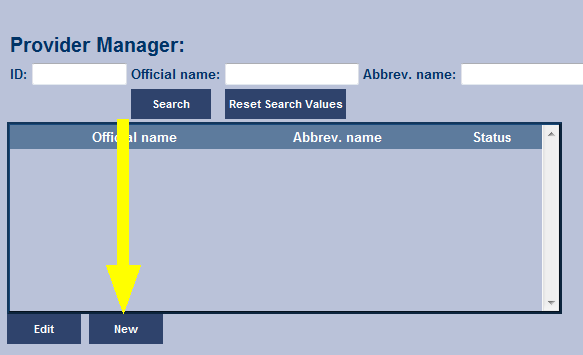
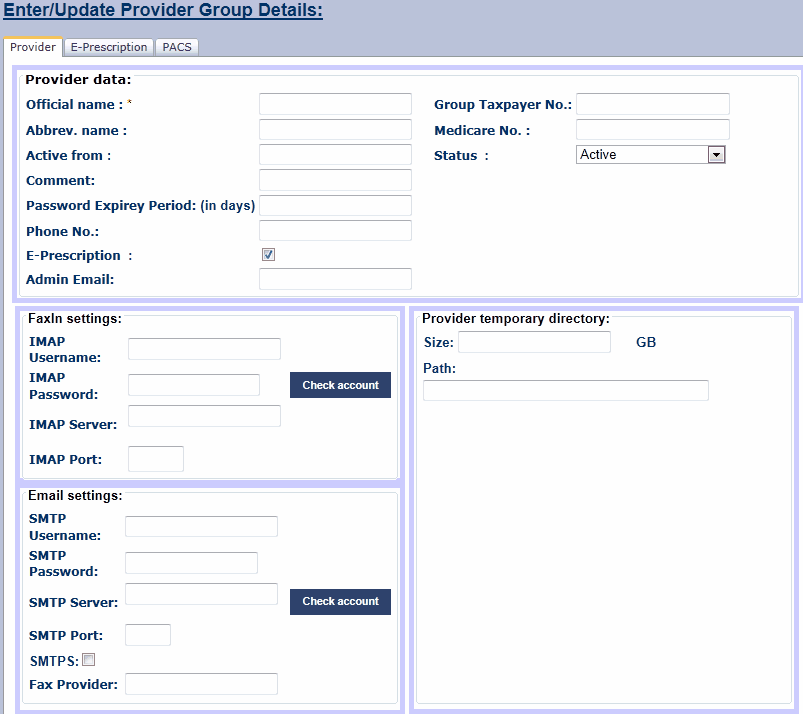
| • | Add a new practice by filling all the required fields and click submit |
| • | Name – Full name of the practice |
| • | Abr. – Abbreviated name of the practice, do not use spaces in the name |
| • | Active from – Put the date when we need to start using that practice account |
| • | Comment – Write any comment, probably name of the lead physician |
| • | Path – the path shall go like “C:\ProvPool\{abbreviated name of the practice} |
| • | Next add a facility to the newly created practice by using “facility Chooser” from the admin page |
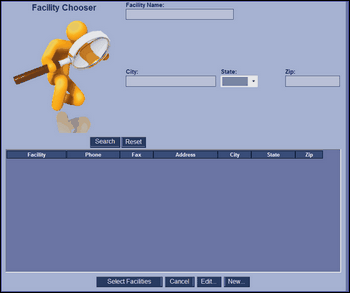
| • | The facility MUST be added as “Internal” |
| • | Next add a practitioner by using the ‘Practitioner Chooser” dialogue box |
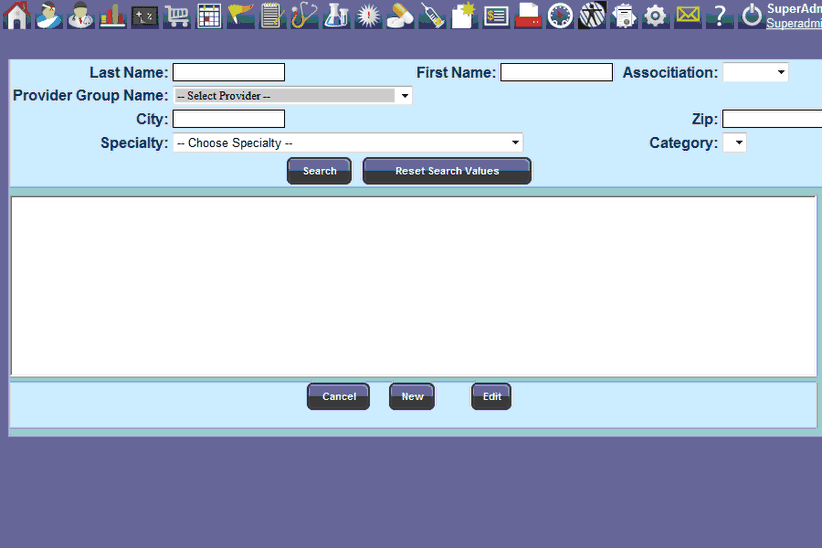
| • | The practitioner MUST be added as “Internal” |
| • | Next go back to “Admin Page” and click on “Role to User assignment” |
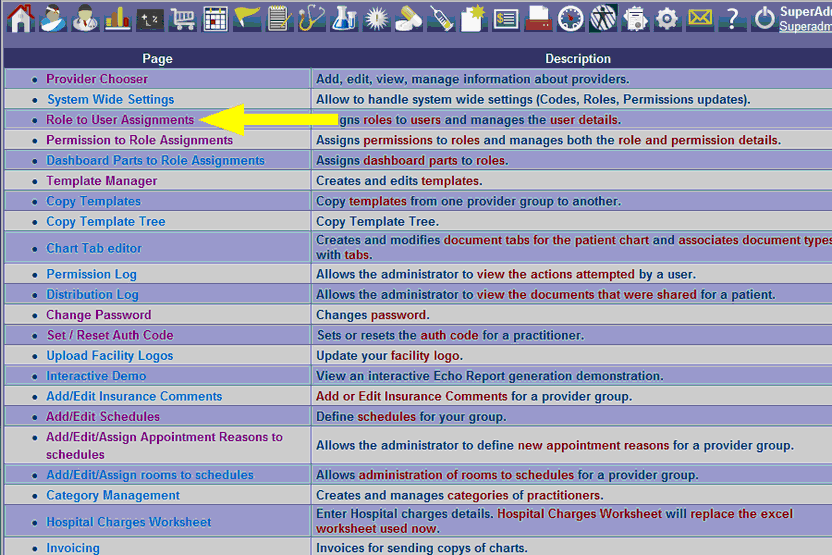
| • | Click on new and add the user by entering username, password, assign the user account to the practitioner created for that user |
| • | When you click submit, system will prompt you to assign a role to the newly created user |
| • | Select the newly created user from the user list and assign as “Admin” |
| • | The new user can then log-in to the practice and set up other users |
|