| • | Log-in to the practice, you should have ‘Admin” role to do this |
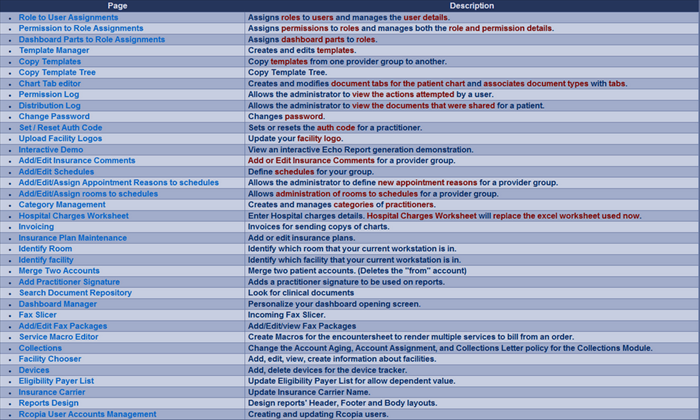
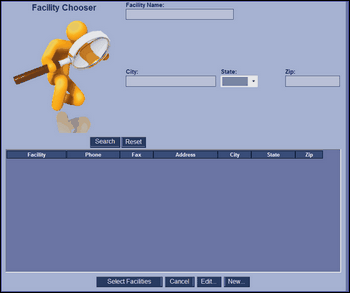
| • | Click on “Facility chooser” and add a new facility to the practice |
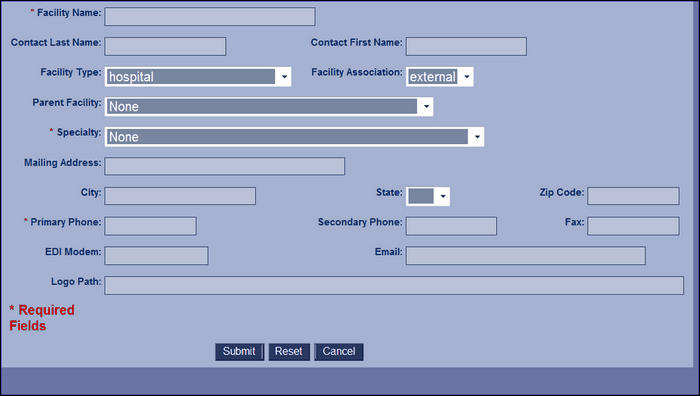
| • | Make the facility as internal |
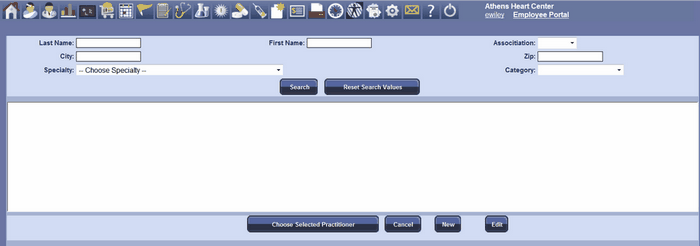
| • | Next click on “Practitioner Chooser” and click “New” |
| • | Add a practitioner for the physician, add all the required information |
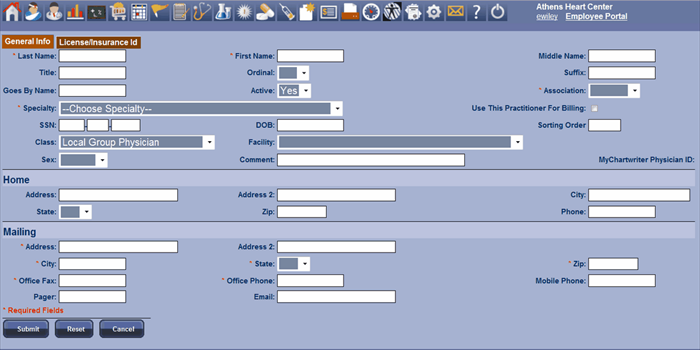
| • | Make sure to add the practitioner as “Internal” |
| • | Next go to admin page and click on “Role to User Assignment” |
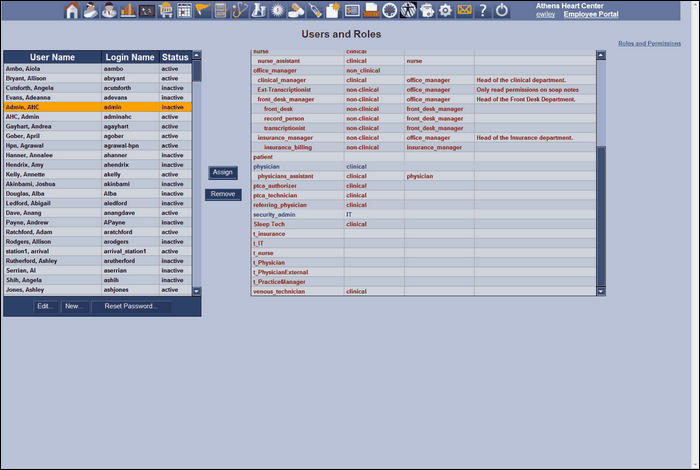
| • | Click on “new” and add the user information. Assign the user to the practitioner we just created |
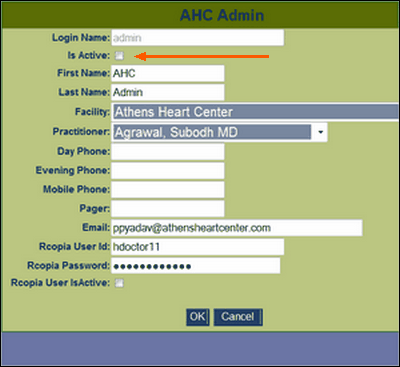
| • | Add the Rcopia user information if the practice is going to use “Rcopia” |
| • | Now the physician can log-in to the practice… |
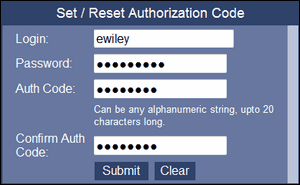
| • | Next go to “Set/reset Auth. code” and select the authorization code for the physician |
| • | Use “Add Practitioner Signature” interface to upload a scanned file of patient signature. This will be displayed on the finalized document when the physician authorizes a document |

|